
deciwa
decision watcher
Feedback and approvals right on your docs, websites and code – so it's clear what is confirmed and what the AI still has to do.
Why deciwa

AI writes requirements, docs, websites and code in minutes. You still have to check it yourself. Your feedback ends up in a chat, in pull request comments or in an email. After three rounds nobody knows which statement you actually confirmed and which one the AI has rewritten since.
I know this from my own work: in my knowledge base the AI writes a lot, and I approve. I wanted a tool where I point at a spot, say briefly what I think of it – and that remembers what I confirmed.
Feedback right on the result
You review what comes out at the end: the built docs, the finished website. Move the mouse over it and deciwa outlines the element under the cursor – a paragraph, a card, a requirement. Hold Alt to jump one level up. If you only want a single word, select it.
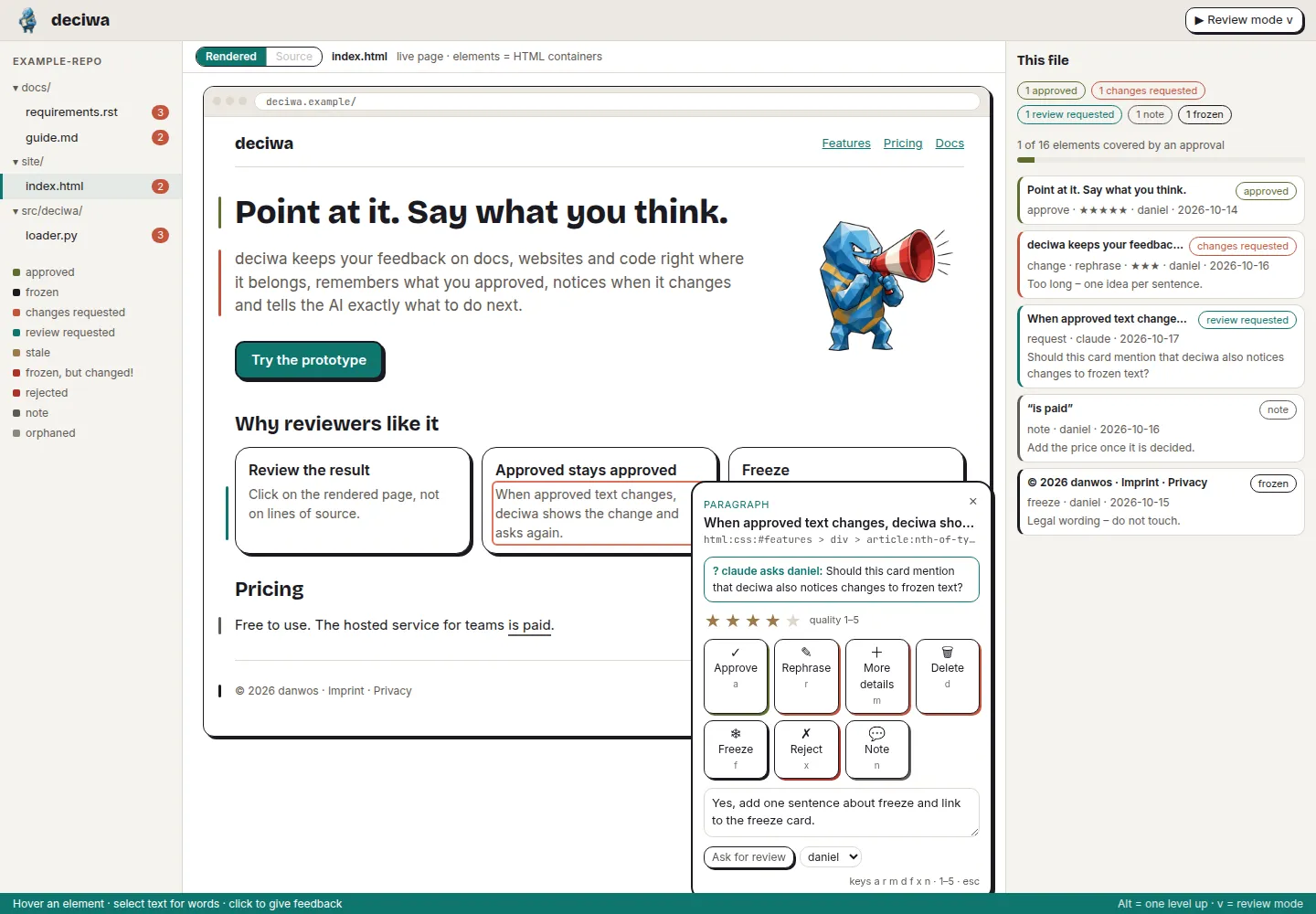
Three ways to work with deciwa
Give feedback
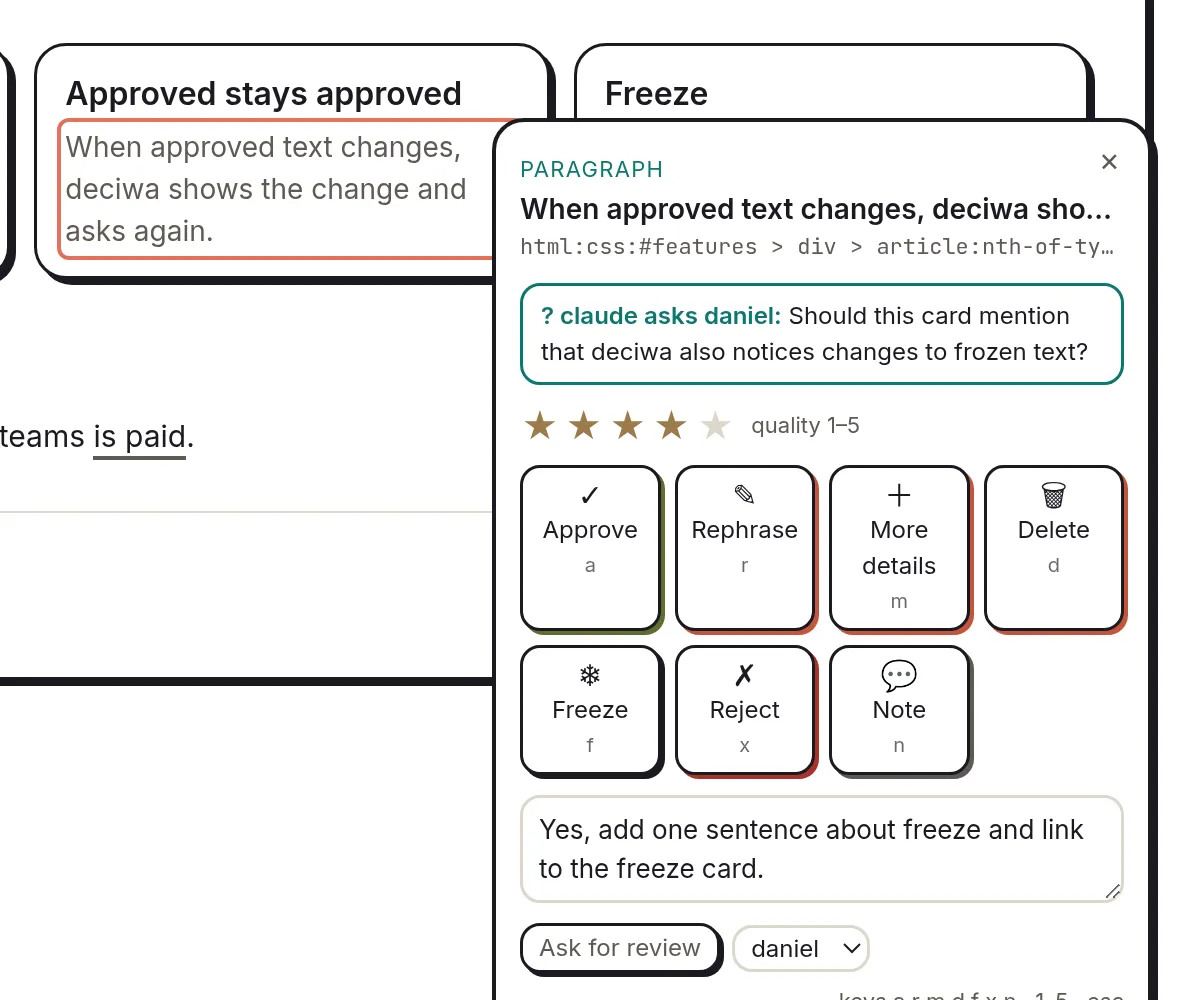
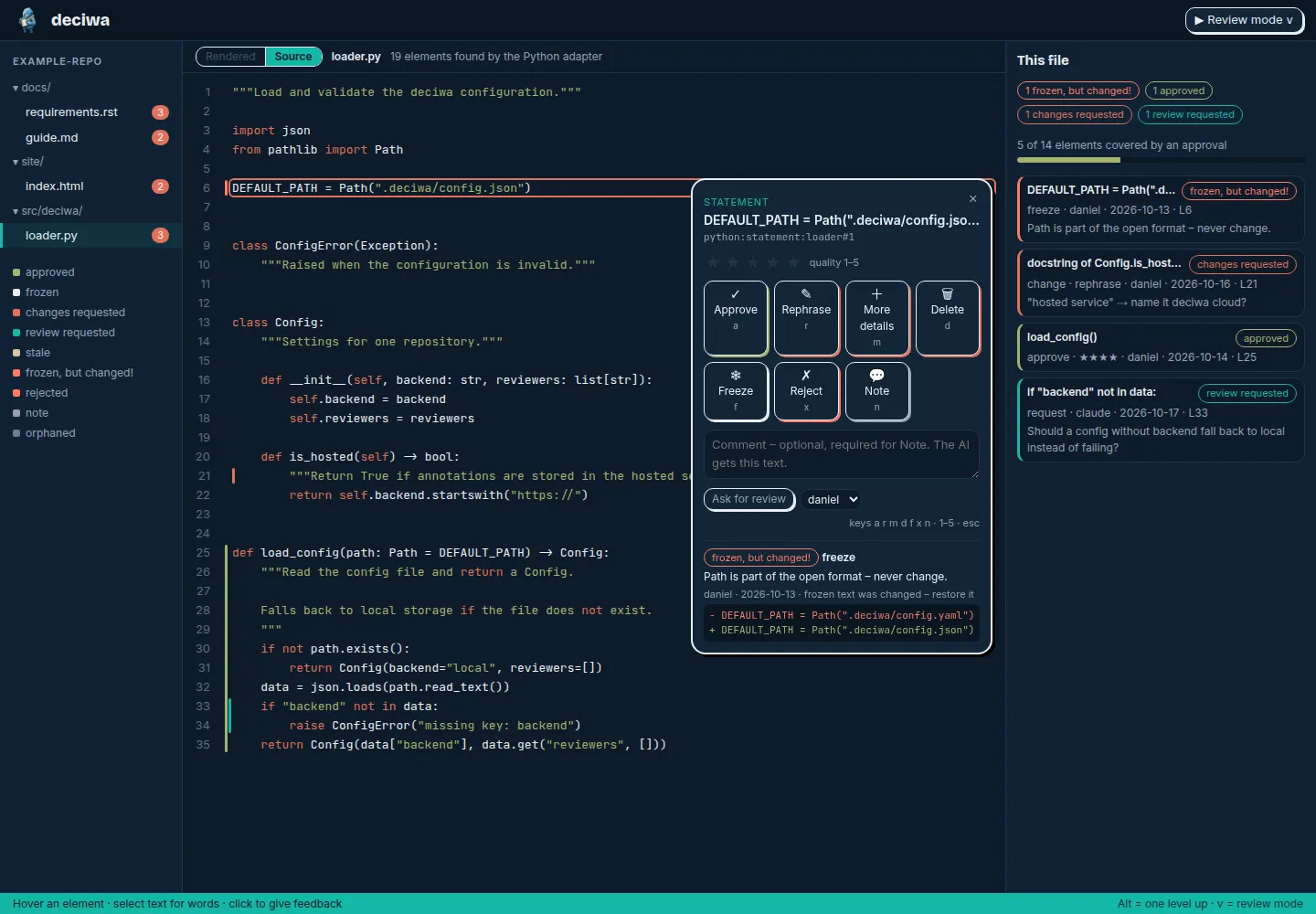
Feedback says what should happen to a spot. Approve confirms the statement, Reject says it is wrong. Rephrase, More details and Delete are jobs for the AI: reword, expand, remove. Freeze protects a spot from any change, and Note just keeps a thought. One click is enough; a comment is optional.
Rate the quality
The one to five stars are separate from that. With them you quickly say how good you think a spot is – without deciding anything or giving a job. A statement can be correct and still get only two stars because it is clumsily written. Later you see where the weak spots are and put your time exactly there.
Talk to the AI
If the AI – Claude, for example – is unsure about a spot, it asks you a question right there instead of guessing. The question shows up in deciwa on the element it is about. You answer with one click, where Approve means “yes, that’s fine”, or you write an answer. The AI reads it and carries on.
You find all three on the card: the AI’s question at the top, the stars below it, then the feedback buttons and the comment field.
Everything at a glance
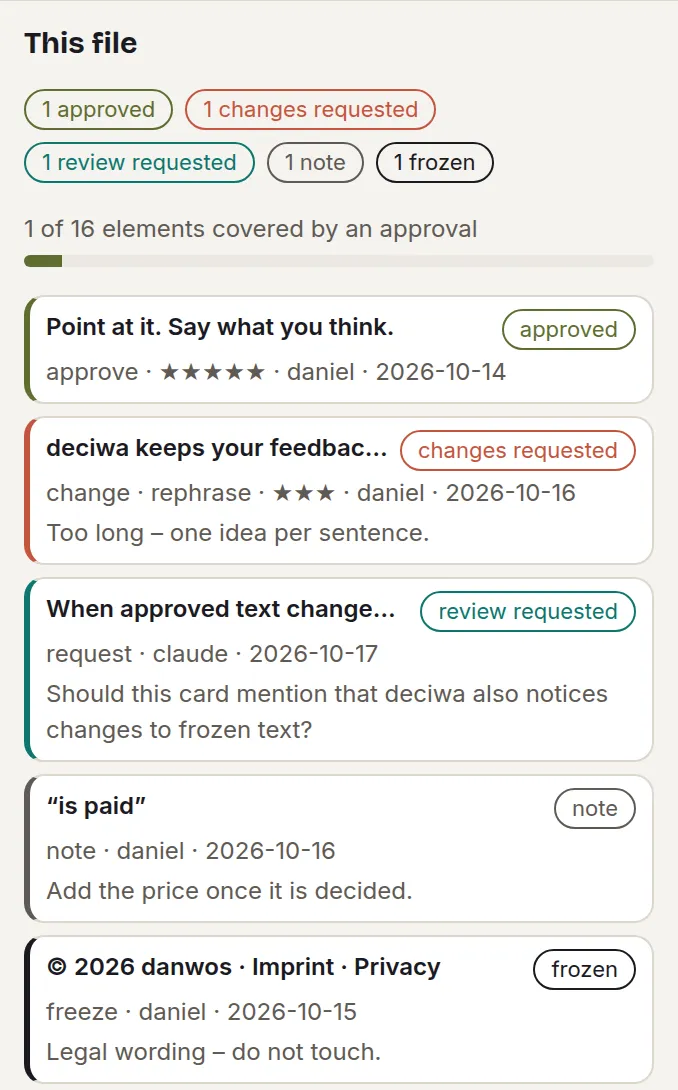
Next to the page, deciwa lists all feedback on the file: what is approved, what should change, where a question from the AI is open and what is frozen, each with your stars. You find the same colors on the edge of the page, right next to the parts they belong to.
At the top you see how much of the file is already covered by an approval. A click on an entry jumps to that spot – so you go through a file from top to bottom without missing anything.
Approved stays approved – until the text changes
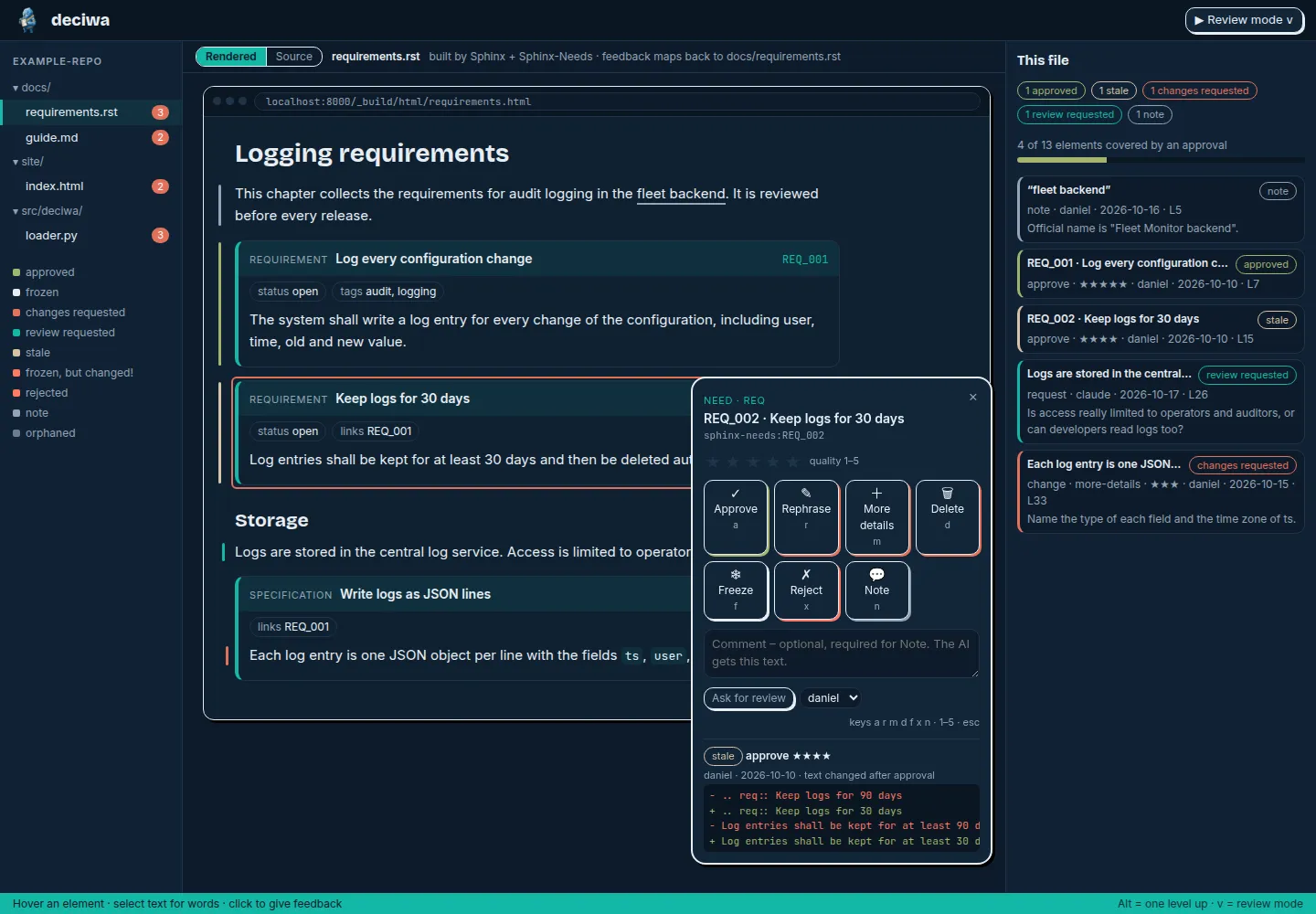
An approval is tied to exactly the element you confirmed, not to a line number. If someone changes the text later, deciwa notices. The element is marked “stale”, you see what changed, and you decide again. That way it is always clear which statements are really confirmed right now.
Freeze: hands off

Some parts must stay exactly as they are: legal text, an agreed requirement, a constant in code. Mark them with Freeze. The AI leaves them alone – and if the text changes anyway, deciwa raises the alarm and shows you what was there before.
The AI works through your feedback

Every piece of feedback is a clear instruction: Rephrase means reword it, More details means expand it, Delete means remove it, Freeze means hands off. The AI fetches the open list, works through it and then asks you to look at the changed parts again.
deciwa itself never changes text. It collects your feedback, evaluates it and shows what is still missing. The work is done by the AI or by you.
Where you use deciwa
- VS Code – in the editor and in the preview of your docs
- Chrome – on any rendered page, docs or website
- Claude – you go through a file together with the AI in the chat, and Claude asks its questions right in deciwa
- Desktop app – for everyone who doesn’t use a development environment
deciwa understands Markdown, reStructuredText with Sphinx-Needs, AsciiDoc, HTML, plain text and code in Python, C, JavaScript and TypeScript. Everywhere you get the same buttons and the same states.
Where your data lives
Your feedback never ends up in your files. deciwa stores everything in a
.deciwa folder – in your repository, or in a folder above it if you review
several repositories together. The format is openly documented and versioned
with Git, like the rest of your project.
For teams there is a hosted service. Data lives there centrally, and you get a task list per person, an overview of how much is already confirmed, an evaluation of your stars that shows the weak spots, comparisons between versions and a report for audits: who approved which wording when.
Status
deciwa is in the concept phase. The pictures here come from a clickable prototype. The tool will be free to use; the hosted service for teams is paid.